Teachers and administrators can manage students' language settings in Class Management. By default, most screens in My Library, Pre-Reader, and I Can Read include an English–Spanish toggle button. These settings can be changed to show English only, Spanish only, or both.
To adjust a student's language toggle button, click Class Management towards the top right corner of the screen:

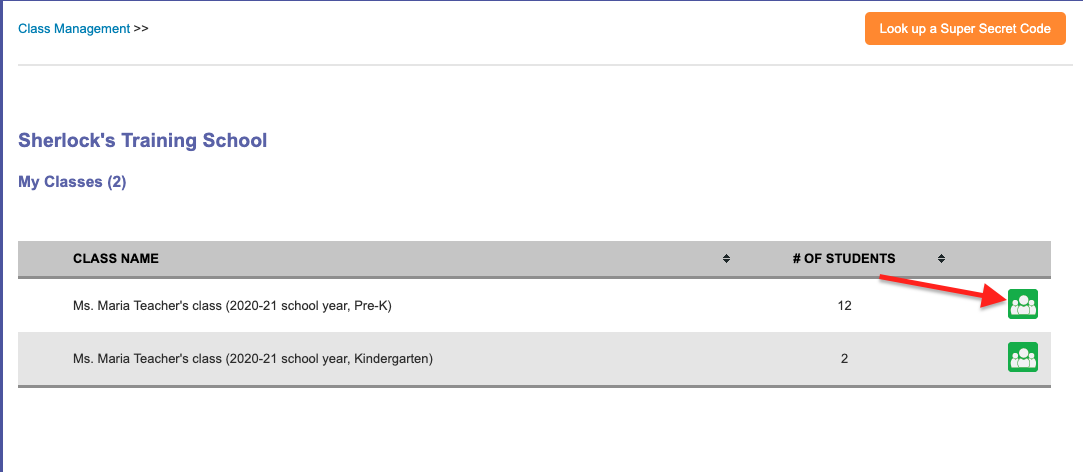
If you have more than one class, click on the class you'd like to access:
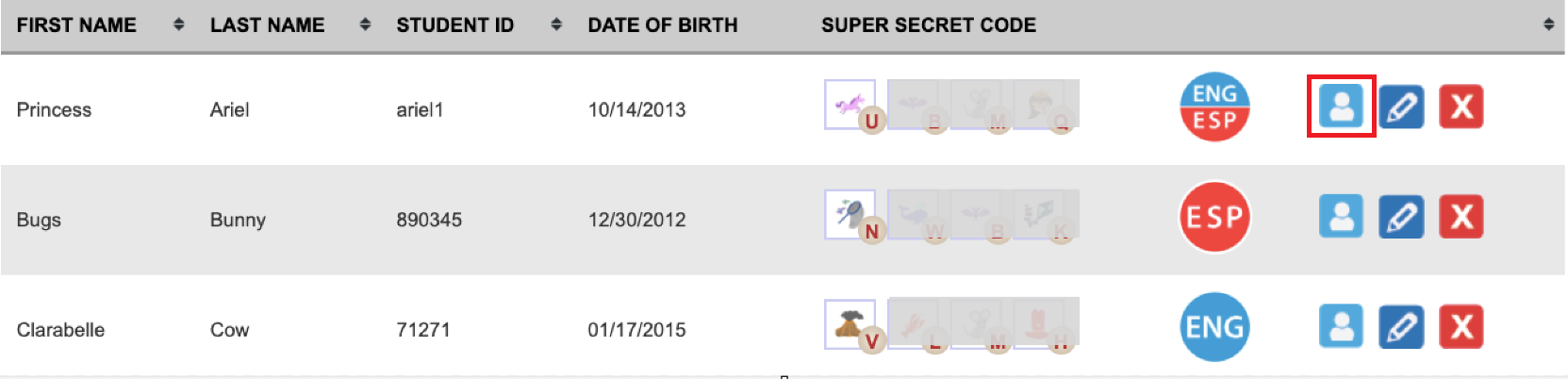
Students' current language toggle settings are displayed in the student list. Click the Student Profile button to update the language toggle settings.
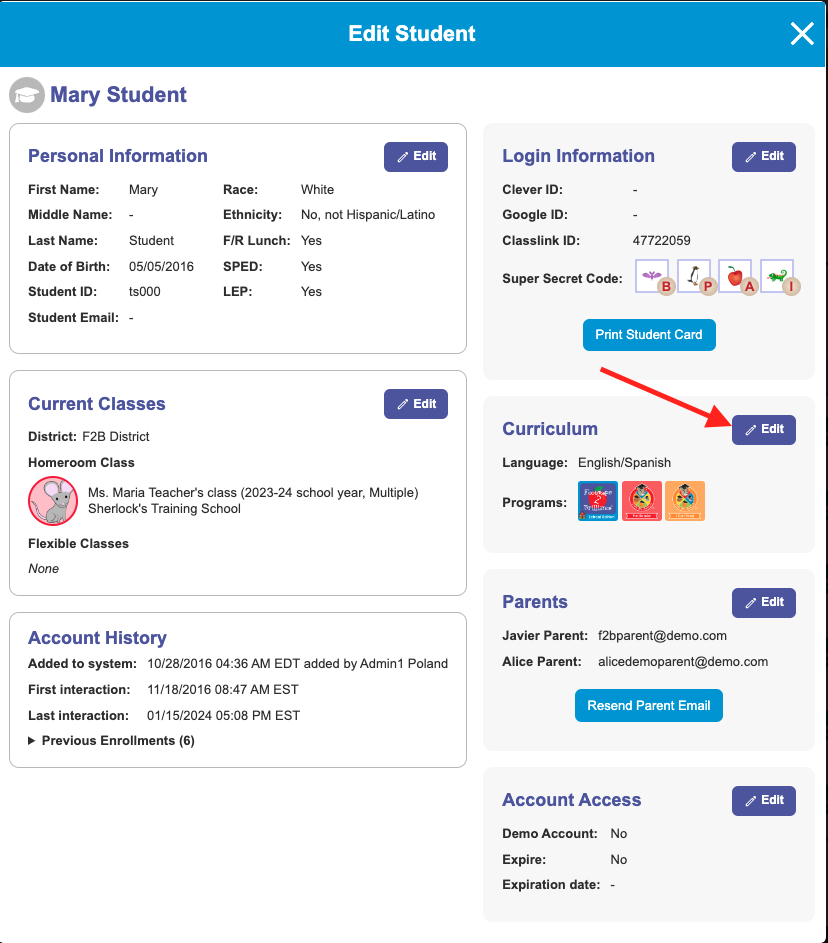
Under Curriculum Settings, click Edit and select the desired language toggle setting for the student.
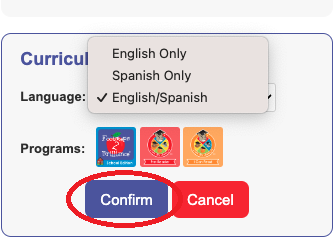
Once you've selected the language, click Confirm to save the changes:
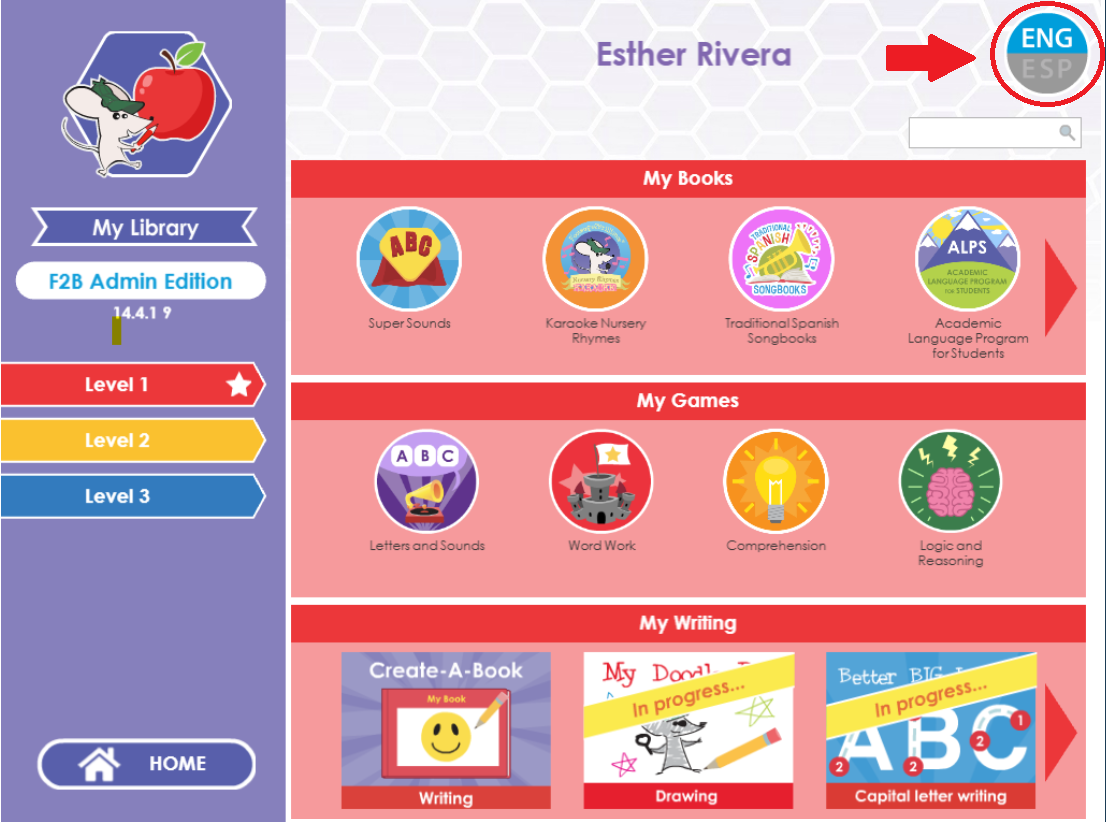
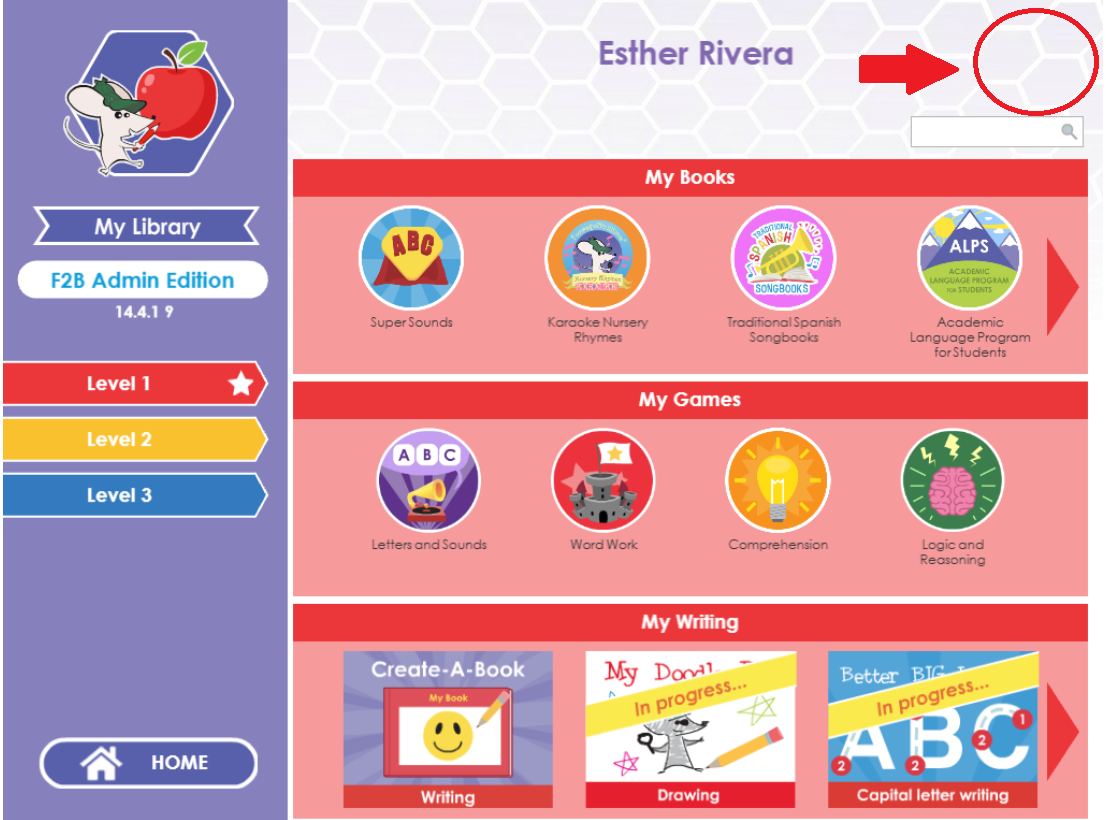
If a student has English/Spanish selected, they will see the toggle button (as pictured in Image 1). If a student is set to only one language, they will no longer see the language toggle button in any program (as pictured in Image 2).
1. 2.
 |  |
Note that Clever Kids University: Pre-Reader and I Can Read provides a systematic and explicit phonics sequence to read in English. We recommend that students using these programs always have access to English.
Need more help? Email us at support@footsteps2brilliance.com
Was this article helpful?
That’s Great!
Thank you for your feedback
Sorry! We couldn't be helpful
Thank you for your feedback
Feedback sent
We appreciate your effort and will try to fix the article